> ## Documentation Index
> Fetch the complete documentation index at: https://prowler-feat-supabase-provider-poc.mintlify.site/llms.txt
> Use this file to discover all available pages before exploring further.
> ## Agent Instructions
> Prowler product naming: Prowler App is now Prowler Local Server, and Prowler Enterprise is now Prowler Private Cloud. Always use the current names when answering. The full product reference is at /getting-started/products: Open Source projects are Prowler CLI, Prowler Local Server, Prowler Local Dashboard, and Prowler SDK; Prowler Products are Prowler Cloud, Prowler Private Cloud, Prowler Hub, Prowler Lighthouse AI, and Prowler MCP.
# Jira Integration
export const AppliesTo = ({products = ["Prowler Cloud", "Prowler Private Cloud", "Prowler Local Server"]}) => {
return
This guide applies to{" "}
{products.map((name, index) =>
{index > 0 && (index === products.length - 1 ? products.length > 2 ? ", and " : " and " : ", ")}
{name}
)}
. See Prowler product families.
;
};
export const VersionBadge = ({version}) => {
return
Added in:
{version}
;
};
Prowler Cloud enables automatic export of security Findings to Jira, providing seamless integration with Atlassian's work item tracking and project management platform. This comprehensive guide demonstrates how to configure and manage Jira integrations to streamline security incident management and enhance team collaboration across security workflows.
Integrating Prowler Cloud with Jira provides:
* **Streamlined management:** Convert security Findings directly into actionable Jira work items
* **Enhanced team collaboration:** Leverage existing project management workflows for security remediation
* **Automated ticket creation:** Reduce manual effort in tracking and assigning security work items
## How It Works
When enabled and configured:
1. Select one or more complete Finding Groups, or expand a Finding Group and select multiple Findings, from the Findings table.
2. Send the selection to Jira in one action.
3. Choose how Jira issues are created:
* **Grouped issue:** Create one Jira issue that contains all selected Findings from the Finding Group.
* **Separate issues:** Create one Jira issue for each selected Finding. Each Finding represents one affected resource.
4. Review the Finding Group summary and affected-resource details in Jira, then use the link at the bottom of the issue to open the complete Finding Group in Prowler Cloud.
## Prerequisites
Configuring and using the Jira integration requires the **Manage Integrations** permission. The Jira integration is tenant-wide, so it does not require **Unlimited Visibility** or any specific Provider Group. Findings sent to Jira are still limited to the providers the role can access.
## Configuration
To configure Jira integration in Prowler Cloud:
1. Navigate to **Integrations** in Prowler Cloud
2. Locate the **Jira** card and click **Manage**, then select **Add integration**
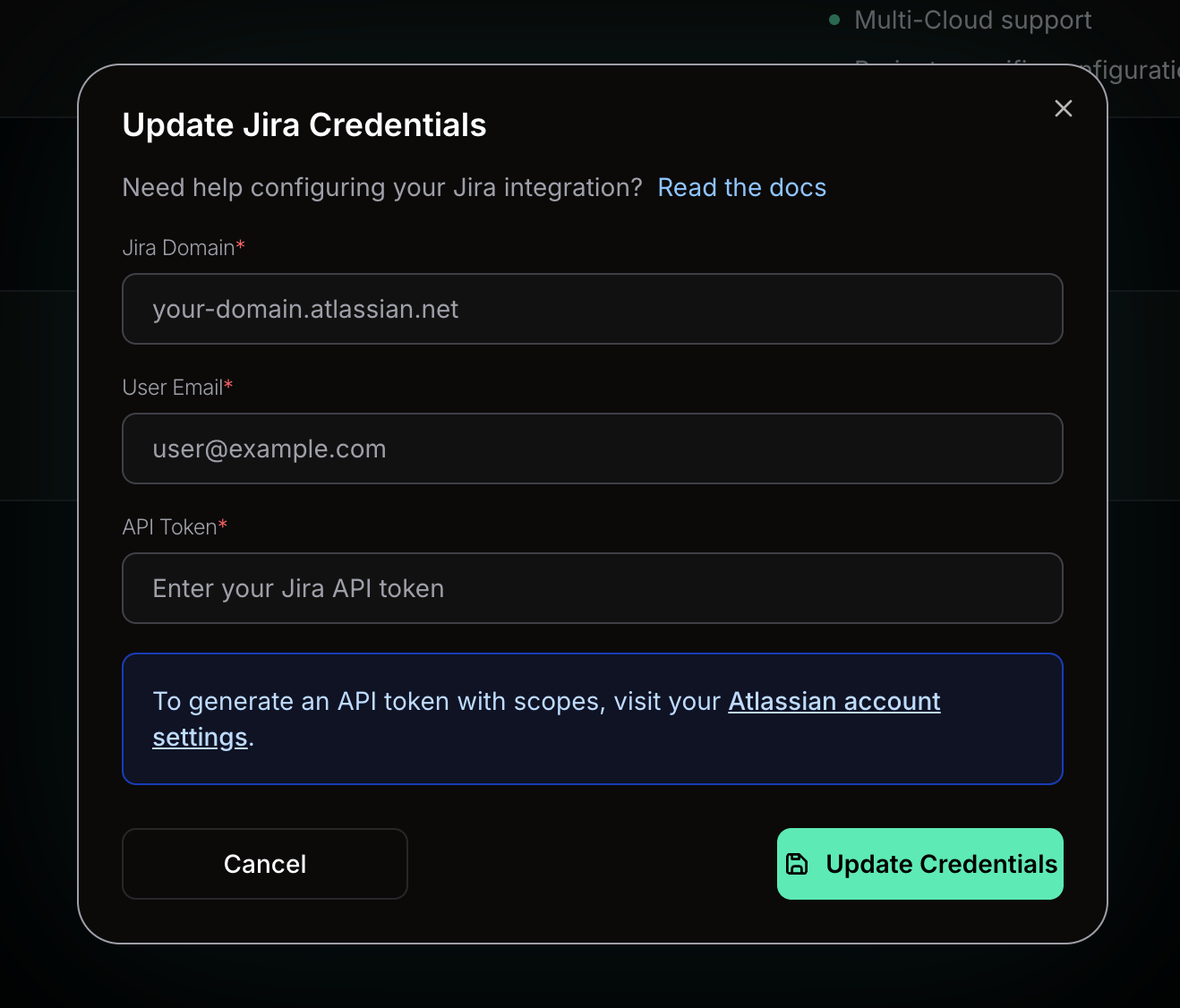
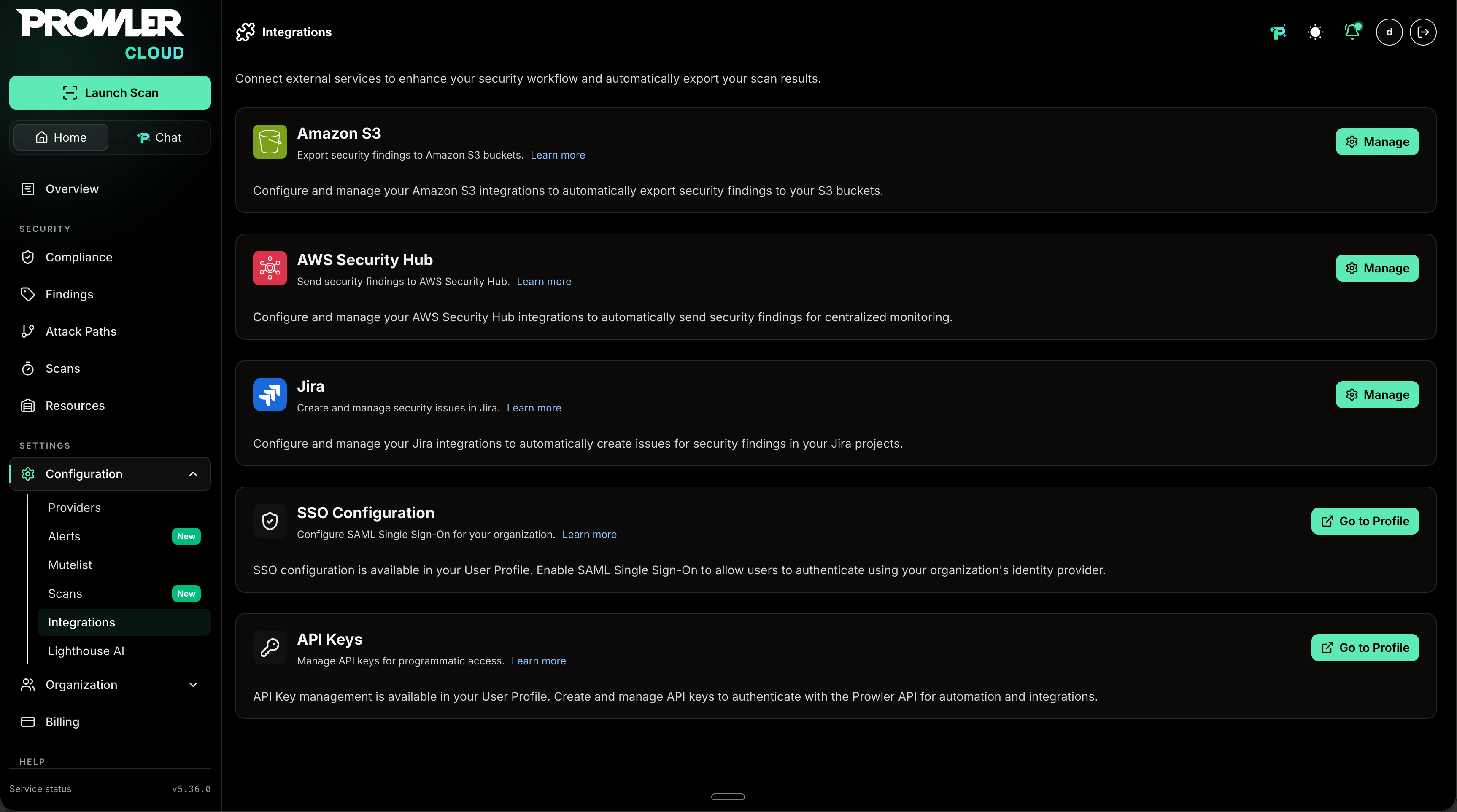 3. Complete the integration settings:
* **Jira domain:** Enter the Jira domain (e.g., from `https://your-domain.atlassian.net` -> `your-domain`)
* **Email:** Your Jira account email
* **API Token:** API token with the following scopes: `read:jira-user`, `read:jira-work`, `write:jira-work`
3. Complete the integration settings:
* **Jira domain:** Enter the Jira domain (e.g., from `https://your-domain.atlassian.net` -> `your-domain`)
* **Email:** Your Jira account email
* **API Token:** API token with the following scopes: `read:jira-user`, `read:jira-work`, `write:jira-work`
 **Generate Jira API Token**
To generate a Jira API token, visit: [https://id.atlassian.com/manage-profile/security/api-tokens](https://id.atlassian.com/manage-profile/security/api-tokens)
Once configured successfully, the integration is ready to send Findings to Jira.
## Sending Findings to Jira
Prowler Cloud can send a complete Finding Group or a selection of Findings within a group to Jira in one action.
### Sending a Complete Finding Group
To send every Finding in a Finding Group:
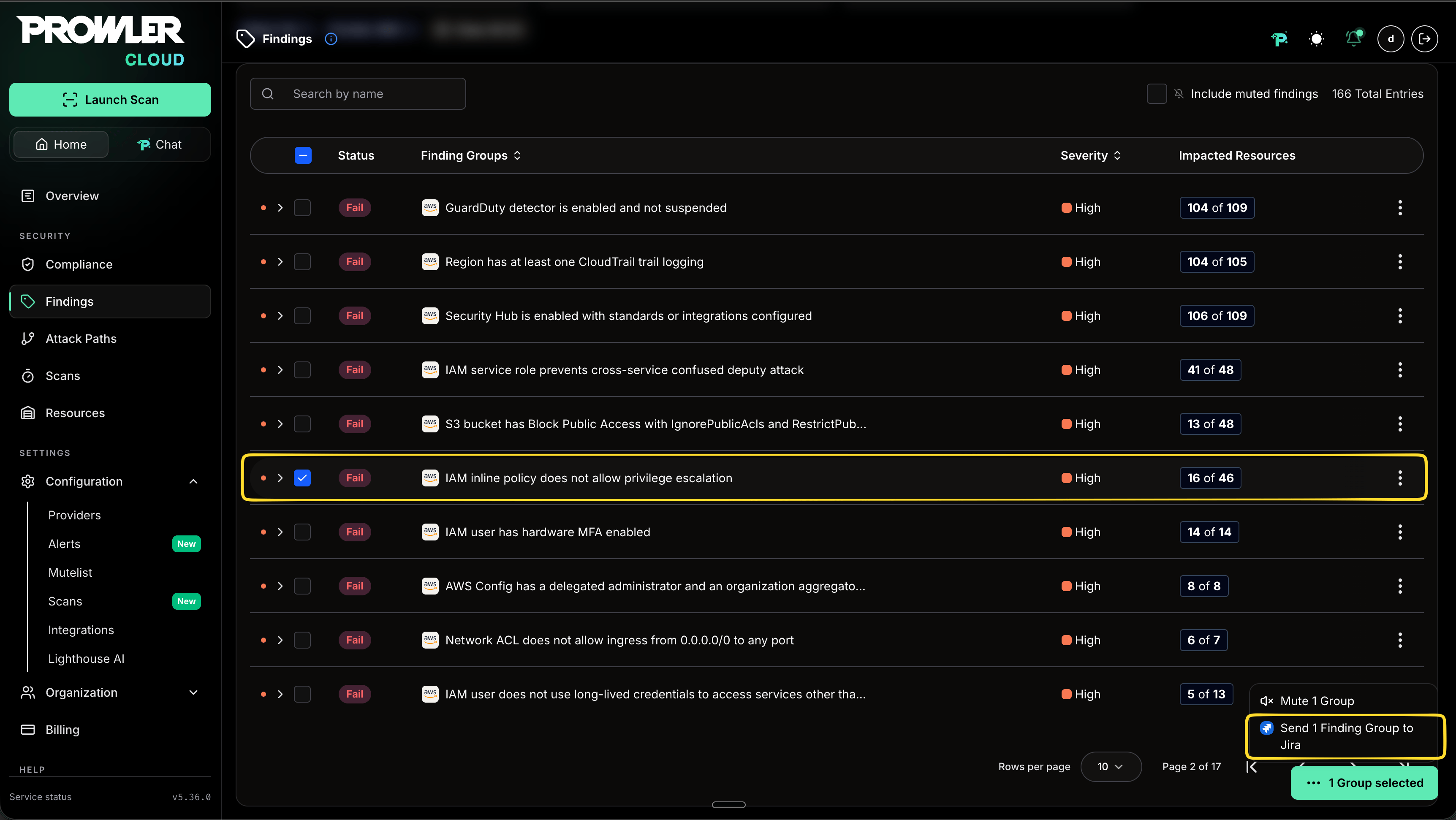
1. Navigate to **Findings** in Prowler Cloud.
2. Select one or more Finding Groups.
3. Open the bulk actions menu and click **Send Finding Group to Jira**.
**Generate Jira API Token**
To generate a Jira API token, visit: [https://id.atlassian.com/manage-profile/security/api-tokens](https://id.atlassian.com/manage-profile/security/api-tokens)
Once configured successfully, the integration is ready to send Findings to Jira.
## Sending Findings to Jira
Prowler Cloud can send a complete Finding Group or a selection of Findings within a group to Jira in one action.
### Sending a Complete Finding Group
To send every Finding in a Finding Group:
1. Navigate to **Findings** in Prowler Cloud.
2. Select one or more Finding Groups.
3. Open the bulk actions menu and click **Send Finding Group to Jira**.
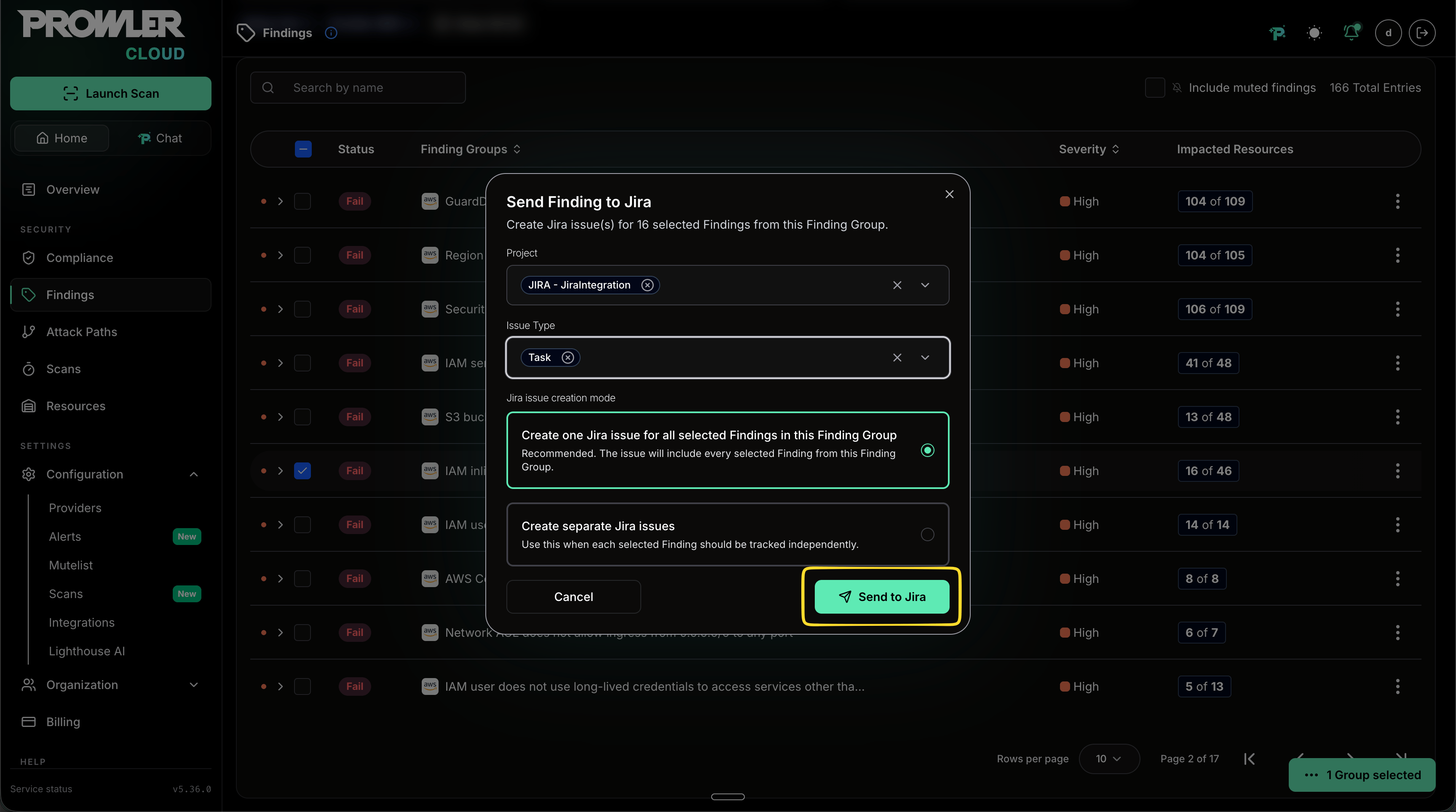
 4. Select the Jira project and issue type.
5. Choose an issue creation mode:
* **Create one Jira issue for all selected Findings in this Finding Group:** Keeps the complete Finding Group in one Jira issue.
* **Create separate Jira issues:** Creates one Jira issue per selected Finding so that each affected resource can be tracked independently.
6. Click **Send to Jira**.
4. Select the Jira project and issue type.
5. Choose an issue creation mode:
* **Create one Jira issue for all selected Findings in this Finding Group:** Keeps the complete Finding Group in one Jira issue.
* **Create separate Jira issues:** Creates one Jira issue per selected Finding so that each affected resource can be tracked independently.
6. Click **Send to Jira**.
 ### Sending Multiple Findings from a Group
To send only specific affected resources:
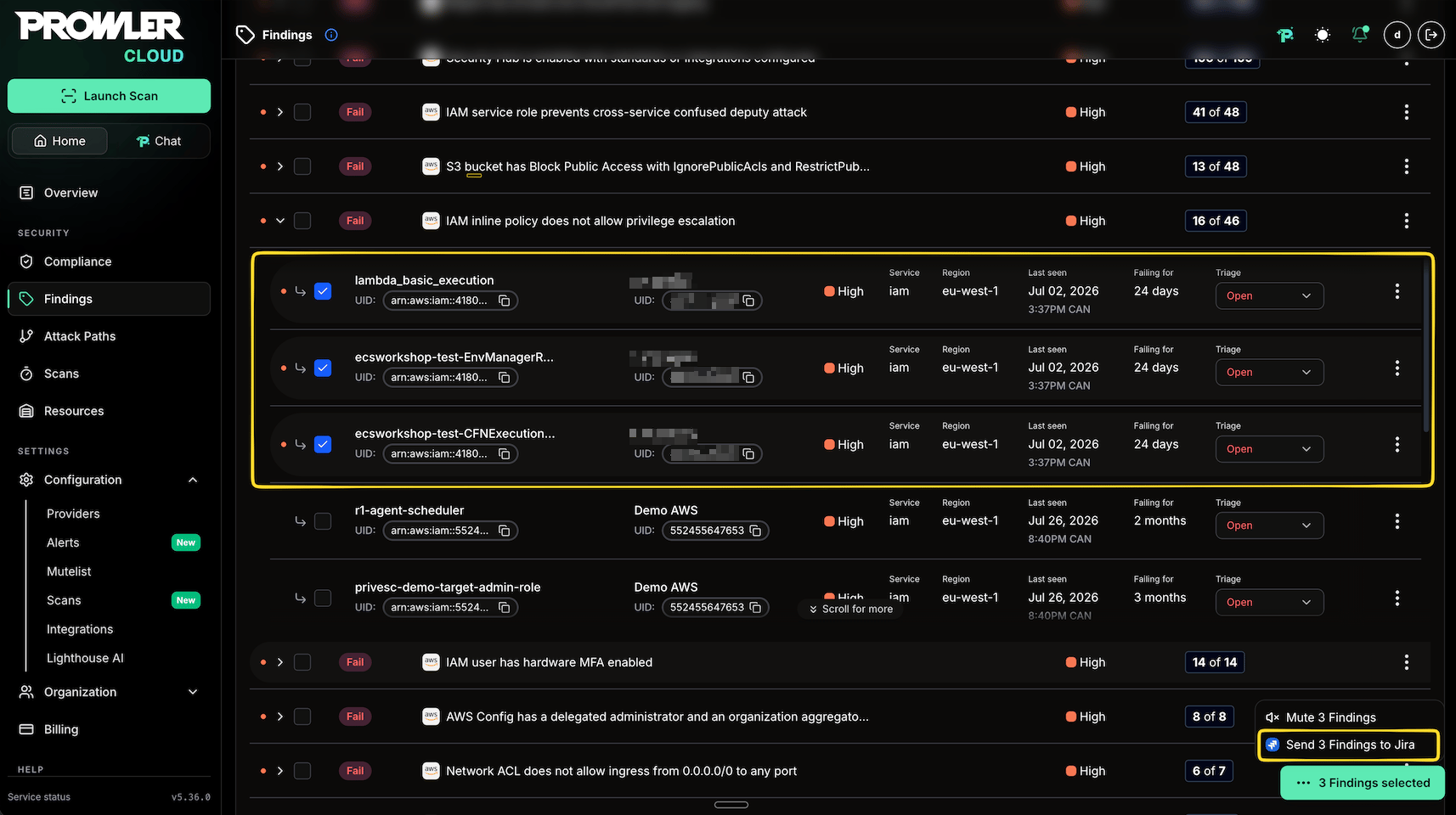
1. Expand a Finding Group.
2. Select the Findings to send. Each Finding represents one affected resource.
3. Open the bulk actions menu and click **Send Findings to Jira**.
4. Select the Jira project, issue type, and grouped or separate issue creation mode.
5. Click **Send to Jira**.
### Sending Multiple Findings from a Group
To send only specific affected resources:
1. Expand a Finding Group.
2. Select the Findings to send. Each Finding represents one affected resource.
3. Open the bulk actions menu and click **Send Findings to Jira**.
4. Select the Jira project, issue type, and grouped or separate issue creation mode.
5. Click **Send to Jira**.
 ### Reviewing the Jira Issue
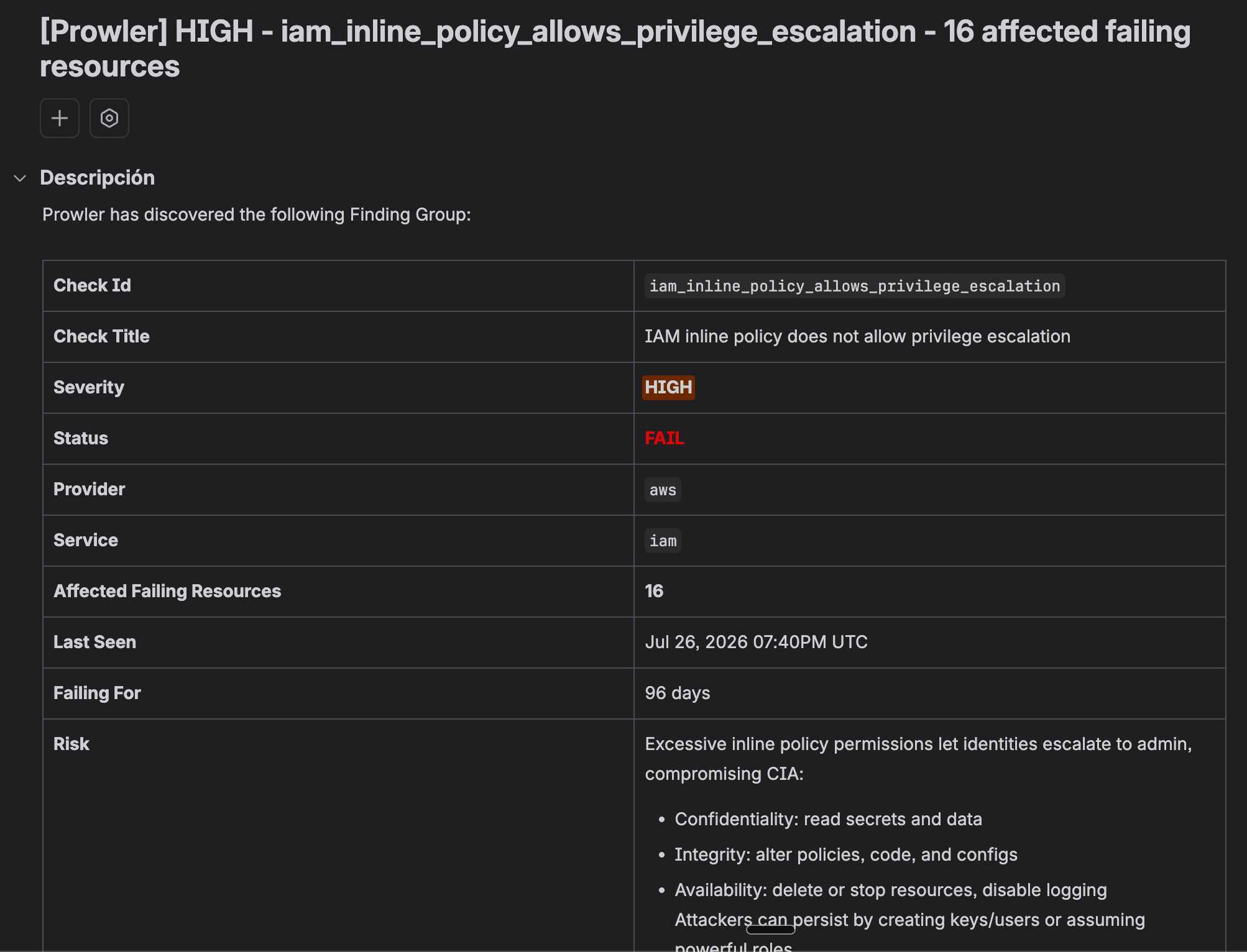
A grouped Jira issue starts with Finding Group summary information. This section identifies the check and provides context such as the check title and ID, severity, status, provider, service, number of affected failing resources, last-seen time, failure duration, and risk.
### Reviewing the Jira Issue
A grouped Jira issue starts with Finding Group summary information. This section identifies the check and provides context such as the check title and ID, severity, status, provider, service, number of affected failing resources, last-seen time, failure duration, and risk.
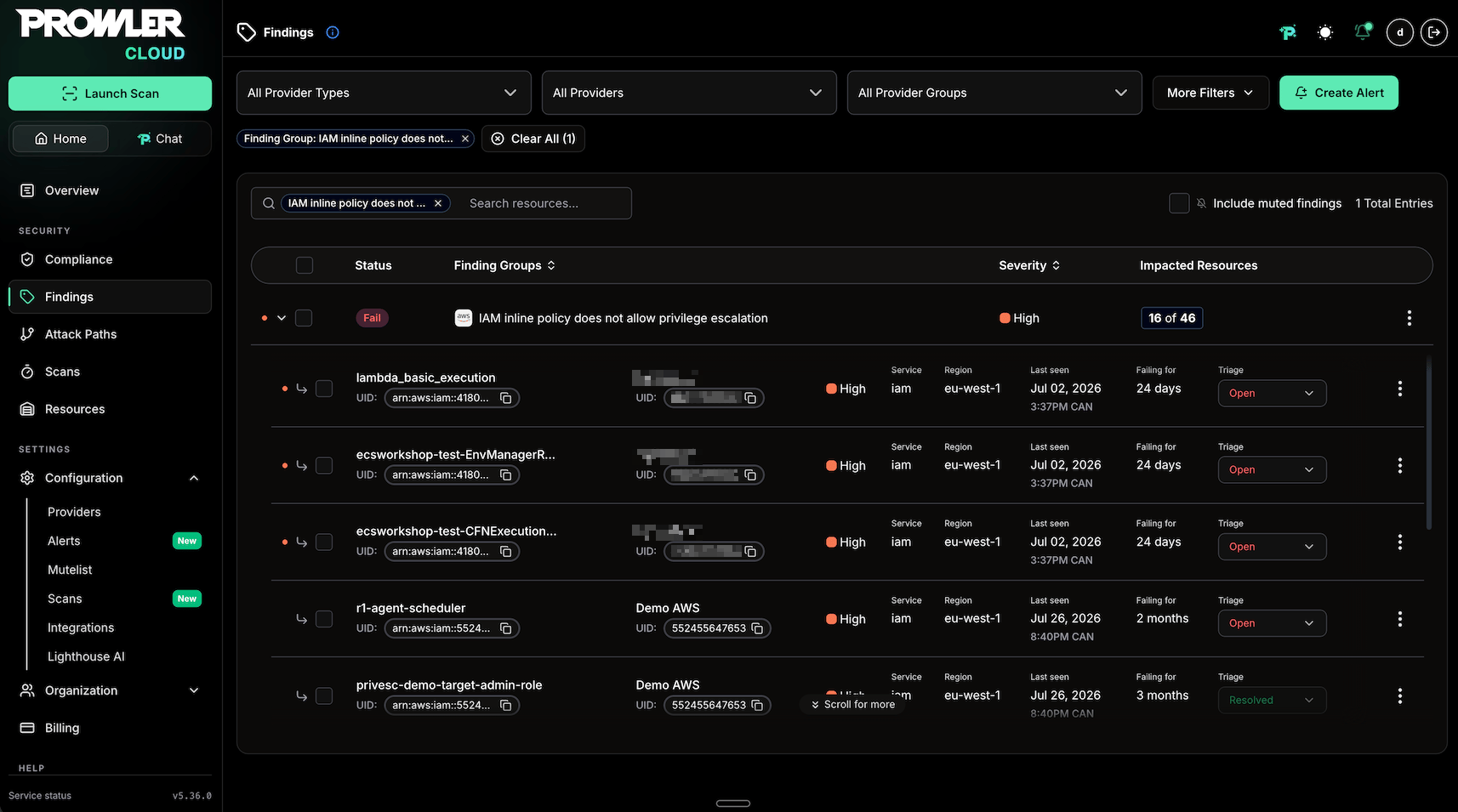
 The affected-resources table lists the selected Findings included in the Jira issue. Each row represents an affected resource and includes the information needed to identify and triage it, such as resource and provider identifiers, provider, service, status, severity, region, last-seen time, failure duration, and triage status.
 At the bottom of the affected-resources table, click **View this Finding Group in Prowler Cloud** to open the complete Finding Group in Prowler Cloud. The link opens the group, not only the Findings included in the Jira issue.
 ### Sending One Finding
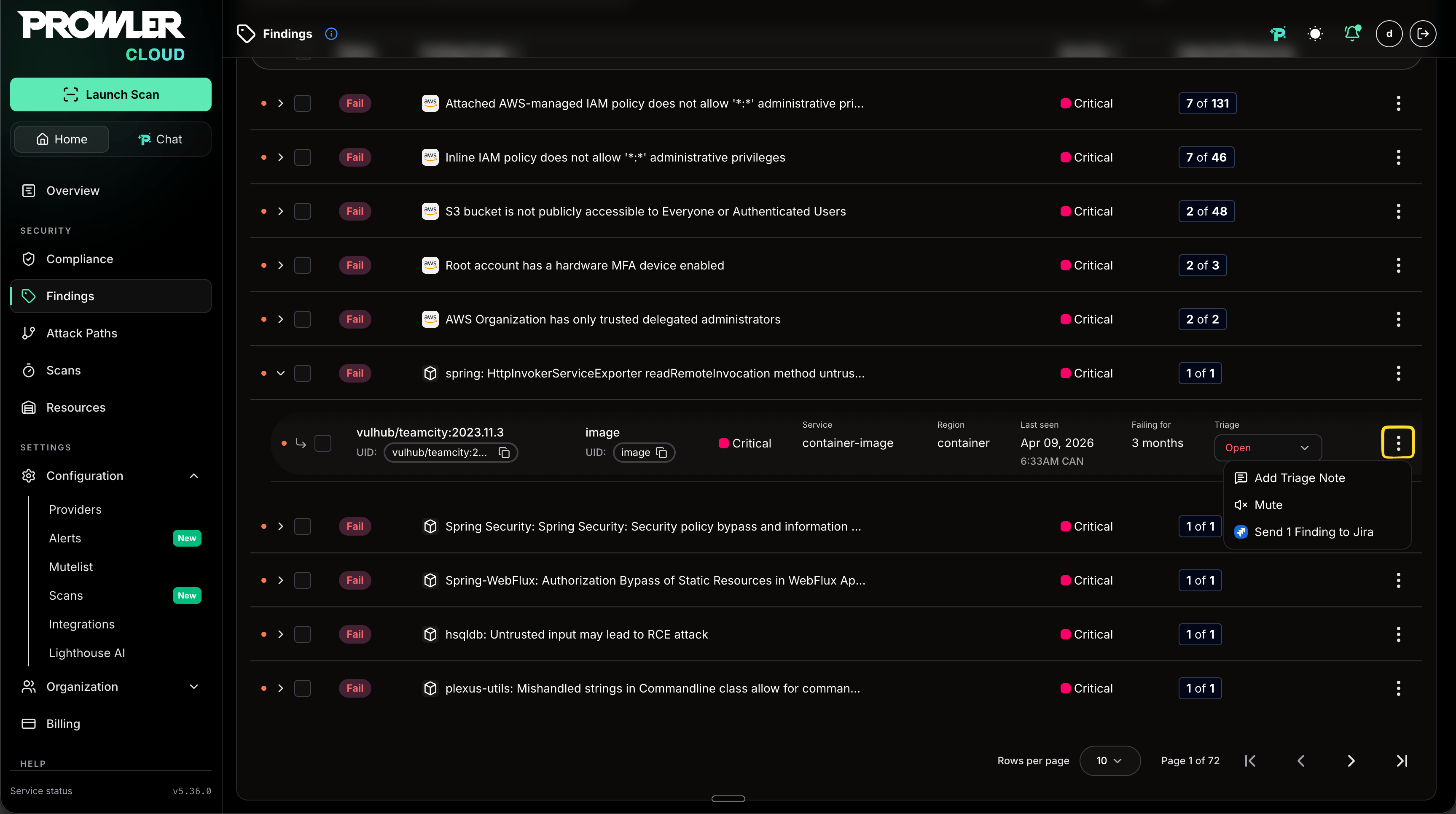
To manually send individual Findings to Jira:
1. Navigate to the **Findings** section in Prowler Cloud
2. Select one Finding you want to export
3. Click the action button on the table row and select **Send to Jira**
4. Select the Jira integration and project
5. Click **Send to Jira**
### Sending One Finding
To manually send individual Findings to Jira:
1. Navigate to the **Findings** section in Prowler Cloud
2. Select one Finding you want to export
3. Click the action button on the table row and select **Send to Jira**
4. Select the Jira integration and project
5. Click **Send to Jira**
 ## Integration Status
Monitor and manage your Jira integrations through the management interface:
1. Review configured integrations in the integrations dashboard
2. Each integration displays:
* **Connection Status:** Connected or Disconnected indicator
* **Instance Information:** Jira domain and last checked timestamp
### Actions
Each Jira integration provides management actions through dedicated buttons:
| Button | Purpose | Available Actions | Notes |
| ------------------ | ------------------------------- | ------------------------------------------------------------------------------------------------------------------------------- | ------------------------------------------------- |
| **Test** | Verify integration connectivity | • Test Jira API access
## Integration Status
Monitor and manage your Jira integrations through the management interface:
1. Review configured integrations in the integrations dashboard
2. Each integration displays:
* **Connection Status:** Connected or Disconnected indicator
* **Instance Information:** Jira domain and last checked timestamp
### Actions
Each Jira integration provides management actions through dedicated buttons:
| Button | Purpose | Available Actions | Notes |
| ------------------ | ------------------------------- | ------------------------------------------------------------------------------------------------------------------------------- | ------------------------------------------------- |
| **Test** | Verify integration connectivity | • Test Jira API access
• Validate credentials
• Check project permissions
• Verify work item creation capability | Results displayed in notification message |
| **Credentials** | Update authentication settings | • Change API token
• Update email
• Update Jira domain | Click "Update Credentials" to save changes |
| **Enable/Disable** | Toggle integration status | • Enable or disable integration
| Status change takes effect immediately |
| **Delete** | Remove integration permanently | • Permanently delete integration
• Remove all configuration data | ⚠️ **Cannot be undone** - confirm before deleting |
## Known Limitations
### Issue Types with Required Custom Fields
Certain Jira issue types (such as Epic) may require mandatory custom fields that Prowler does not currently populate when creating work items. If a selected issue type enforces required fields beyond the standard set (e.g., "Team", "Epic Name"), the work item creation will fail.
To avoid this, select an issue type that does not require additional custom fields — **Task**, **Bug**, or **Story** typically work without restrictions. If unsure which issue types are available for a project, Prowler automatically fetches and displays them in the "Issue Type" selector when sending a Finding.
Support for custom field mapping is planned for a future release.
## Troubleshooting
### Connection test fails
* Verify Jira instance domain is correct and accessible
* Confirm API token or credentials are valid
* Ensure API access is enabled in Jira settings and the needed scopes are granted
### Check task status (API)
If the Jira issue does not appear in your Jira project, follow these steps to verify the export task status via the API.
Replace `http://localhost:8080` with the base URL where your Prowler API is accessible (for example, `https://api.yourdomain.com`).
1. Get an access token (replace email and password):
```bash theme={null}
curl --location 'http://localhost:8080/api/v1/tokens' \
--header 'Content-Type: application/vnd.api+json' \
--header 'Accept: application/vnd.api+json' \
--data-raw '{
"data": {
"type": "tokens",
"attributes": {
"email": "YOUR_USER_EMAIL",
"password": "YOUR_USER_PASSWORD"
}
}
}'
```
2. List tasks filtered by the Jira task (`integration-jira`) using the access token:
```bash theme={null}
curl --location --globoff 'http://localhost:8080/api/v1/tasks?filter[name]=integration-jira' \
--header 'Accept: application/vnd.api+json' \
--header 'Authorization: Bearer ACCESS_TOKEN' | jq
```
If you don't have `jq` installed, run the command without `| jq`.
3. Share the output so we can help. A typical result will look like:
```json theme={null}
{
"links": {
"first": "https://api.dev.prowler.com/api/v1/tasks?page%5Bnumber%5D=1",
"last": "https://api.dev.prowler.com/api/v1/tasks?page%5Bnumber%5D=122",
"next": "https://api.dev.prowler.com/api/v1/tasks?page%5Bnumber%5D=2",
"prev": null
},
"data": [
{
"type": "tasks",
"id": "9a79ab21-39ae-4161-9f6e-2844eb0da0fb",
"attributes": {
"inserted_at": "2025-09-09T08:11:38.643620Z",
"completed_at": "2025-09-09T08:11:41.264285Z",
"name": "integration-jira",
"state": "completed",
"result": {
"created_count": 0,
"failed_count": 1
},
"task_args": {
"integration_id": "a476c2c0-0a00-4720-bfb9-286e9eb5c7bd",
"project_key": "PRWLR",
"issue_type": "Task",
"finding_ids": [
"01992d53-3af7-7759-be48-68fc405391e6"
]
},
"metadata": {}
}
},
{
"type": "tasks",
"id": "5f525135-9d37-4b01-9ac8-afeaf8793eac",
"attributes": {
"inserted_at": "2025-09-09T08:07:22.184164Z",
"completed_at": "2025-09-09T08:07:24.909185Z",
"name": "integration-jira",
"state": "completed",
"result": {
"created_count": 1,
"failed_count": 0
},
"task_args": {
"integration_id": "a476c2c0-0a00-4720-bfb9-286e9eb5c7bd",
"project_key": "JIRA",
"issue_type": "Task",
"finding_ids": [
"0198f018-8b7b-7154-a509-1a2b1ffba02d"
]
},
"metadata": {}
}
}
],
"meta": {
"pagination": {
"page": 1,
"pages": 122,
"count": 1214
},
"version": "v1"
}
}
```
How to read it:
* "created\_count": number of Jira issues successfully created.
* "failed\_count": number of Jira issues that could not be created. If `failed_count > 0` or the issue does not appear in Jira, please contact us so we can assist while detailed logs are not available through the UI.